Intelligent Context Condensing
The Intelligent Context Condensing feature helps manage long conversations by summarizing earlier parts of the dialogue. This prevents important information from being lost when the context window nears its limit. This feature is enabled by default.
How It Works
As your conversation with Roo Code grows, it might approach the context window limit of the underlying AI model. When this happens, older messages would typically be removed to make space. Intelligent Context Condensing aims to prevent this abrupt loss by:
- Summarizing: Using an AI model, it condenses earlier parts of the conversation.
- Retaining Essentials: The goal is to reduce the overall token count while keeping the key information from the summarized messages.
- Maintaining Flow: This allows the AI to have a more coherent understanding of the entire conversation, even very long ones.
- Slash command continuity: Slash commands included in the first message are preserved across condensations.
Important Considerations:
- Summarization Impact: While original messages are preserved if you use Checkpoints to rewind, the summarized version is what's used in ongoing LLM calls to keep the context manageable.
- Cost: The AI call to perform the summarization incurs a cost. This cost is included in the context condensing metrics displayed in the UI.
Configuration
Intelligent Context Condensing is enabled by default and offers several configuration options:
- Open Roo Code settings ( icon in the top right corner of the Roo Code panel).
- Navigate to the Context Management settings section.
- Configure the available options:
- Automatically trigger intelligent context condensing: Enabled by default, this controls whether condensing happens automatically (found in "Context" settings)
- Threshold to trigger intelligent context condensing: A percentage slider (default 100%) that determines when condensing activates based on context window usage (found in "Context" settings)
- Custom Context Condensing Prompt: Customize the prompt Roo uses when condensing (found in "Context Management" settings)
- Condensing model: Condensing uses your active conversation provider/model.
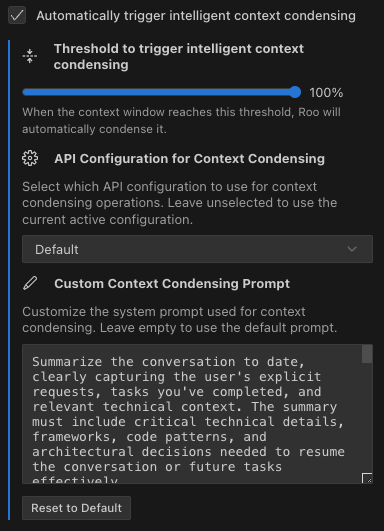
Intelligent Context Condensing configuration options: automatic triggering toggle, threshold slider, and custom prompt customization.
Controlling and Understanding Context Condensing
Roo Code provides several ways to control and understand the Intelligent Context Condensing feature:
Controlling context condensing
-
Automatic Threshold: The threshold slider in "Context" settings allows you to define a percentage (e.g., 80%) of context window usage. Roo Code will attempt to condense the context automatically when the conversation reaches this level of capacity.
-
Custom Prompt: Modify the prompt used for condensing to better suit your workflow or emphasize what should be preserved.
-
Manual Trigger: A Condense Context button is available at the top of the task, positioned to the right of the context bar. This allows you to initiate the context condensing process at any time.
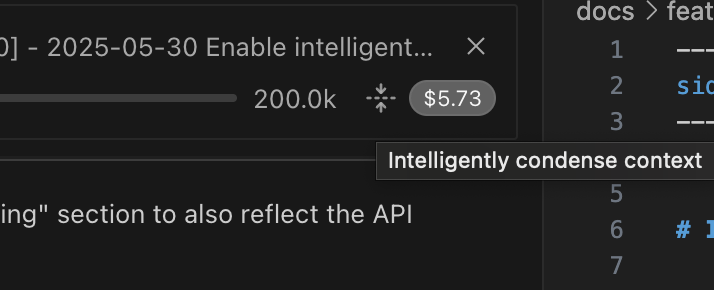
The Manual Condense Context button (highlighted with a yellow arrow) is easily accessible for manual control.
Understanding context condensing activity
- Context Condensing Metrics: When context condensing occurs, Roo Code displays:
- The context token counts before and after context condensing.
- The cost associated with the context condensing AI call.
- An expandable summary detailing what was condensed (this information is part of the
ContextCondenseRowcomponent visible in the chat history).

Why this view matters: it’s your audit trail for what changed, how much it cost, and what Roo will carry forward.
- Visual Indicators:
-
A progress indicator ("Condensing context...") is shown in the chat interface while context condensing is active.
-
The task header also displays the current context condensing status.
-
The
ContextWindowProgressbar offers a visual representation of token distribution, including current usage, space reserved for the AI's output, available space, and raw token numbers.
-
- Interface Clarity: The "Condense Context" button includes a tooltip explaining its function, available in all supported languages.
Tips for Effective Context Condensing
Customizing the context condensing prompt
You can customize the context reduction prompt to better suit your specific domain or use case. This is particularly useful if you find that the default condensing process loses important information specific to your workflow.
To customize the prompt:
- Go to Roo Code settings ( icon)
- Open Context Management
- Find the Custom Context Condensing Prompt editor
- Enter your custom prompt that instructs Roo on what must be preserved
For example, if you're working on a complex debugging session, you might add instructions like:
- "Always preserve error messages and stack traces in full"
- "Maintain all variable names and their last known values"
- "Keep track of all attempted solutions and their outcomes"
This customization ensures that the context condensing process retains the information most critical to your specific use case.
Automatic Error Recovery
When Roo Code encounters context window limit errors, it now automatically recovers to keep your work flowing:
How error recovery works
- Error Detection: Roo Code detects context window errors from multiple providers (OpenAI, Anthropic, Cerebras, and others)
- Automatic Truncation: The system automatically reduces the context by 25%
- Retry Mechanism: After truncation, Roo Code retries your request (up to the built-in retry limit)
- Continuation: Roo retries without manual intervention
This automatic recovery ensures that:
- You don't lose work due to context limit errors
- Long conversations can continue smoothly
- The system intelligently manages context without requiring manual restarts
When recovery triggers
The automatic recovery activates when:
- The API returns a context window exceeded error
- The conversation approaches the maximum token limit
- Multiple providers report similar context-related errors
This feature works alongside Intelligent Context Condensing to provide multiple layers of context management, ensuring your conversations can continue even in challenging scenarios.
Technical Implementation
Token counting
Roo Code uses a sophisticated token counting system that:
- Employs native token counting endpoints when available (e.g., Anthropic's API)
- Falls back to tiktoken estimation if API calls fail
- Provides accurate counting for different content types:
- Text content: Uses word-based estimation with punctuation and newline overhead
- Image content: Uses a conservative estimate of 300 tokens per image
- System prompts: Includes additional overhead for structural elements
Context window management
- By default, 30% of the context window is reserved (20% for model output and 10% as a safety buffer), leaving 70% available for conversation history.
- This reservation can be overridden by model-specific settings
- The system automatically calculates available space while maintaining this reservation
Error handling strategy
Why you can’t use a different model/provider for condensing (and why that’s good)
Condensing always uses your active conversation provider/model.
Using a different model to condense can degrade summary quality when the history includes tool calls, tool results, or other structured content. Keeping condensing on the same model/provider avoids “translation” errors between different tool/format expectations.
How the custom condense prompt is stored (advanced)
Your custom condense prompt is stored using the same support-prompt override mechanism as other prompt templates: customSupportPrompts.CONDENSE.
- If you had a legacy
customCondensingPrompt, Roo migrates it into this location automatically. - Reset clears the override so Roo falls back to the built-in default condense prompt.